Previously I wrote about porting Android 16 to my favorite phone of all time, the Palm PVG100 (pepito).
This post is about a small bump to Android 17.
Porting from 16 to 17
This was mostly mechanical, rebasing my changes on top of the Lineage 24.0 branches of all the forks.
A17 may be the last stop on the road here, because I’ve been building upon the Mi8937 codebases. Mi8937 is the device family that shares the same chipset as the PVG100, but it looks like its maintainers are ending support for it after Lineage 24.0.
A18 may be much harder when we get there.
New features
I wanted to do a little more than just rebase all the things.
Web flasher
Inspired by the new Lineage Web Flasher tool, I wanted to build my own for the PVG100.
The biggest barrier to entry for flashing the PVG100 is the fact that one must use the Qualcomm Emergency Download (EDL) mode.
This usually means the command line, or a special Qualcomm tool and drivers. Yuck.
Using qdl.js, I was able to build a flasher that was super easy to use.
Because it only targets the PVG100(E), I can make a lot of simplifying assumptions.
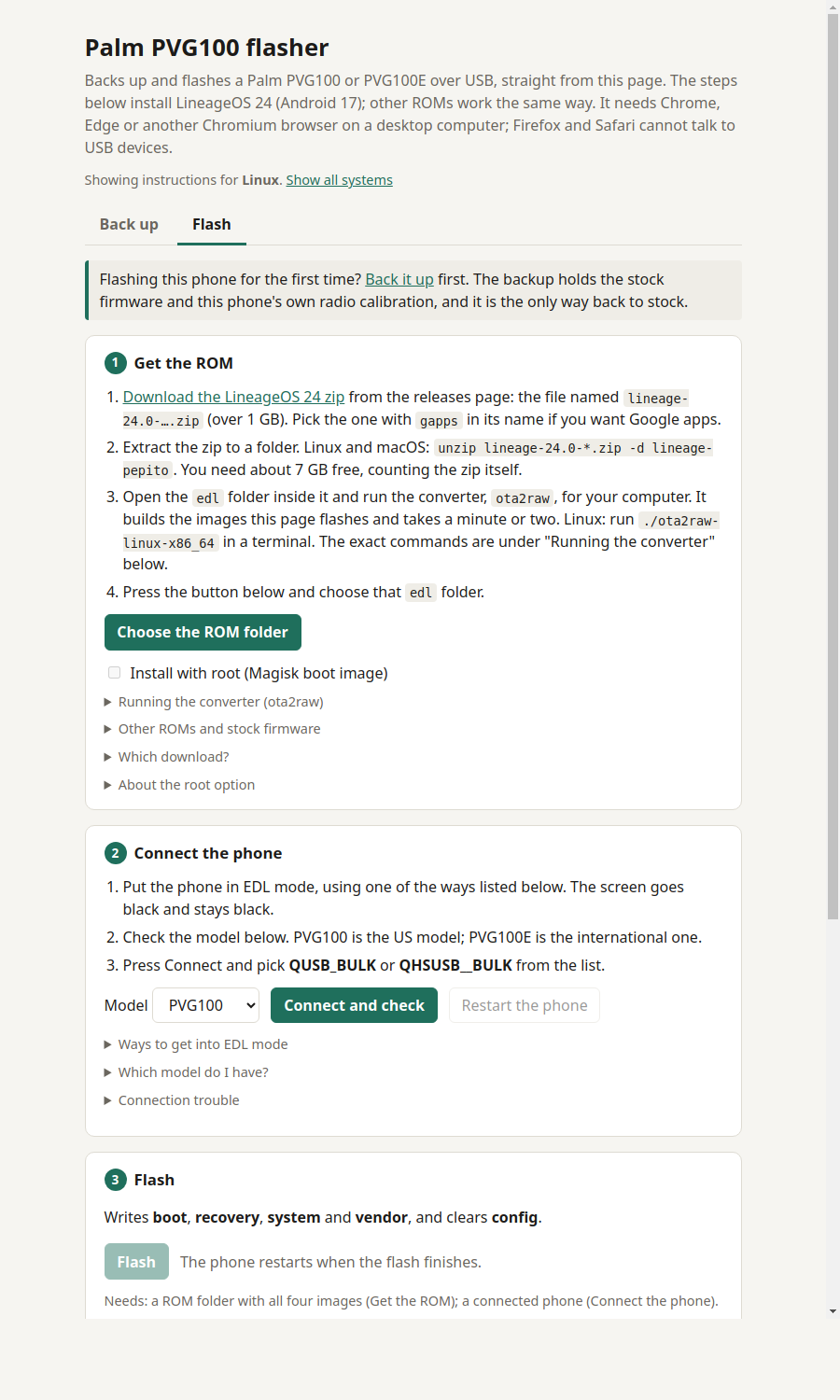
It works on any OS in any Chromium-based browser, with no additional software needed! (Except a USB driver on Windows.)
PVG100 tweaks
This phone is tiny, and the battery is abysmal.
Because of the square-cube law, the battery life of this thing is just super super bad: the volume of the battery shrinks with the cube of the phone’s size.
If you want a phone that is half the size, you get a battery that’s 1/8th as big.
Therefore, I wanted lots of options for me and other users to make our own tradeoffs for saving battery, and I put them all in a special PVG100 section.
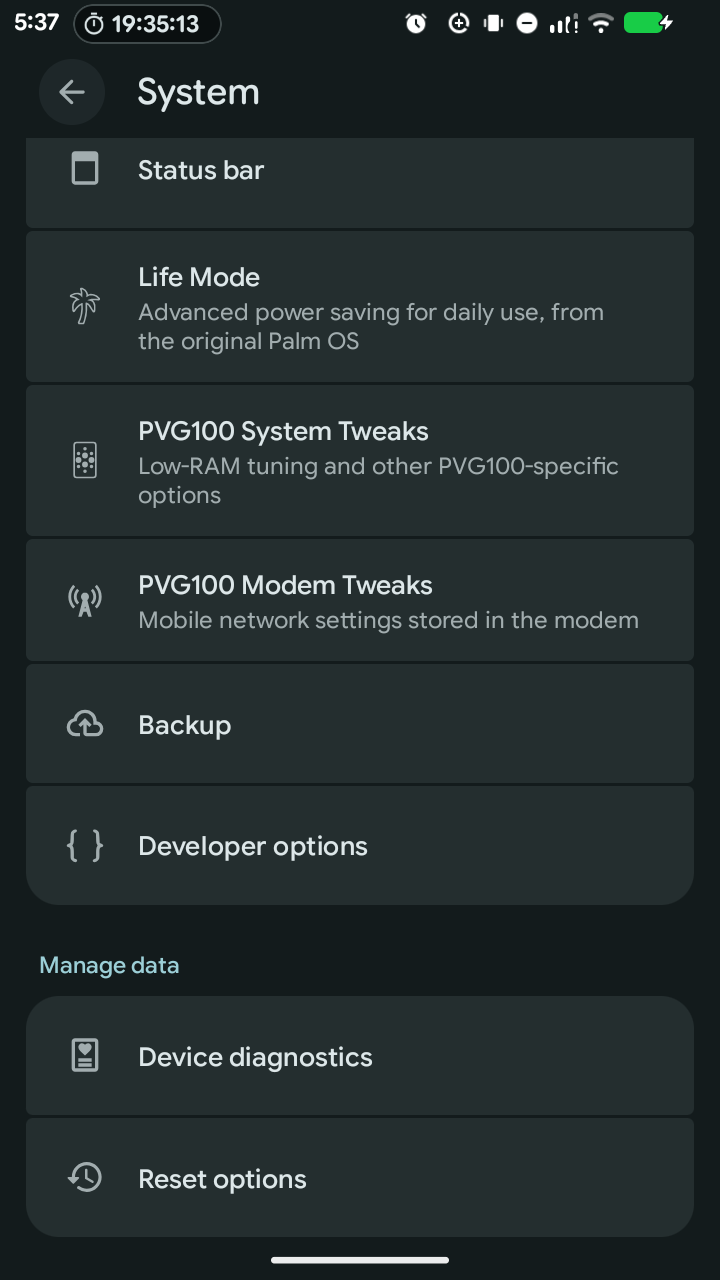
You can automatically turn off things like Wi-Fi, Bluetooth, location, scale down CPU/GPU frequencies, etc.
In my power testing, I was able to get the phone’s idle power usage, with all the radios off, down to 3.3 mA, giving it about 6.5 days of theoretical battery time on a charge to the 80% cap (granted, with nothing on).
MGLRU
I backported MGLRU (Multi-Gen LRU) to the phone’s 4.19 kernel.
AI was instrumental here, because it is a lot of kernel and git work to make this happen. We had to backport from Linux 6.1 back to the PVG100 kernel 4.19.
It was worth it. In the end MGLRU is way better at picking which pages to evict. The PVG100 only has 3 GB of RAM. Evicting the wrong pages has a dramatic effect when using this phone. Multitasking can feel impossibly slow. MGLRU greatly improved things in the benchmarks.
New boot logo
While looking at all the partitions on the phone, I realized that the actual initial bootup logo was right there on the flash, not encrypted or anything.
It didn’t use a well-known format, but AI is very good at reverse engineering things.
Now that I could control the first static boot logo, AND control LineageOS’s transition logo, I could seamlessly blend them to give a much more polished bootup feel.
Better Wi-Fi calling
With A16, I really struggled to get Wi-Fi Calling (WFC) to work.
I really wanted it to work though. For one, the stock Android 8.1 OS had it, so I felt like it was a regression to not include it. For two, I feel like a caveman walking to a window to get good signal to have a phone call. My voice is traveling over IP packets anyway. The phone should just automatically pick the better signal, and Wi-Fi is generally better indoors where 4G sucks.
This phone is so small that the RF reception isn’t great. We need as much help as possible to keep it connected, and that means doing the hard work of getting WFC working.
Why is Wi-Fi calling so hard?
WFC works by building an IPsec tunnel over your Wi-Fi to the carrier’s gateway (the ePDG), registering IMS through that tunnel, and then deciding on every call whether the voice goes over Wi-Fi or LTE.
Normal LineageOS doesn’t implement any of that itself (see the wiki’s IMS quirks page)!!!
WFC works on a LineageOS device only when the device’s proprietary vendor blobs (Qualcomm’s IMS service) already handle it, and the maintainer packages them correctly. And that maintainer is me now I guess!
Newer phones run the tunnel on the Android side (“AP-assisted” mode, which AOSP implements in packages/services/Iwlan).
On a 2017 modem like this one the modem runs the tunnel itself (“legacy” mode), and the Android 16/17 code we build on assumes the newer design.
There just isn’t really anything out there to copy.
Where to even begin
Every WFC setting I sent to the modem came back “accepted” and changed nothing.
For weeks the modem’s own debug log showed the same thing: it never considered Wi-Fi as a place to put IMS at all.
To make progress, I put stock Android 8 back on a second phone, made a real Wi-Fi call on it, and captured every message (Diag, F3) stock sent the modem, just to have an answer key to diff against.
Android doesn’t tell the modem Wi-Fi exists
On stock, Qualcomm’s CNE daemon reports Wi-Fi details (SSID, BSSID, IP address, signal) to the modem. Our stack doesn’t have that daemon, and without those reports the modem never brings up the tunnel. The fix is another small daemon that sends the modem those reports while the phone is on Wi-Fi (“the feeder”).
Verizon gotchas
Every phone of mine used a US Mobile SIM, which runs on Verizon’s network, so these are the ones I hit:
- The phone’s own number. Verizon’s IMS won’t carry voice over Wi-Fi unless the modem has the line’s phone number stored. A fresh modem ships with a placeholder of
"0"(or nothing): texts work, calls go to voicemail. The fix here was to populate this field with the number as soon as Android knows it. - Entitlement. Verizon’s carrier config says WFC must be “provisioned”, which normally means Verizon’s own app checks with Verizon’s servers (Android’s generic version of this is TS.43 entitlement). My custom ROM doesn’t have that Verizon app, so the Wi-Fi calling entry never even appeared in Settings. I just overrode the carrier config so the phone treats WFC as already provisioned.
- E911 address. Verizon wants an emergency address on file before it will carry Wi-Fi calls, and that form also lives in Verizon’s own app. It’s tied to the line, not the phone. As a workaround, I registered my E911 address using US Mobile’s app.
- No “Calling preference” row. Verizon’s carrier config hides it and defaults to “cellular preferred” at home. For whatever reason, Verizon always wants WFC to prefer LTE over Wi-Fi? So even with everything working, a call that starts on Wi-Fi gets handed to LTE about a second after you answer if LTE is usable. That isn’t what I wanted, so I overwrote Verizon’s carrier config.
That last part was tricky. The modem moves the call to LTE because a single LTE signal threshold says LTE is “good enough”. It can’t weigh Wi-Fi quality against that, because the piece that would turn on its Wi-Fi measurements is also missing from our stack. So now I have a daemon that changes the threshold on the fly, reading the Wi-Fi signal while you are on a call and cutting over to LTE for you if it drops too low.
Enabling T-Mobile LTE band 12
The PVG100 was a Verizon exclusive. Its configured LTE bands are just Verizon’s: B2, B4, B5, B13, B17 and B66.
B12, though, is in the FCC filing for this phone, so the radio hardware supports it. It’s just switched off in the modem’s configuration. And when a customer sent me their PVG100 to flash, its modem listed seven bands: B12 was on. Of the eight phones I’ve seen, it’s the only one.
If I could figure out how to make B12 work on any phone, it would unlock using the PVG100 on T-Mobile, not just Verizon.
The normal way of unlocking bands didn’t work
The difference showed up as one bit in a band mask, and that mask lives in a legacy modem setting (NV item 6828). I wrote a small tool to read and write those settings over the modem’s diagnostic port, set the bit on a bench phone, and rebooted. It didn’t work. The modem’s own debug log explained why: it looks for calibration data for each band at startup, and B12 was marked “NVs are invalid”. The factory never calibrated B12 on this phone, so the modem refuses to offer a band it has no calibration for.
The answer was in a partition nobody talks about
While searching, I found a 2019 write-up about the Nokia 8110 4G noting that on that phone, the fsg and tunning (sic) partitions are plain, unencrypted tar archives of modem settings.
On the PVG100, fsg is encrypted, but tunning really is just a tar file: the phone’s factory radio calibration.
The special seven-band phone’s tunning held 78 files; every other phone’s held 74.
The four extra files were exactly the B12 calibration items I needed. I wrote those four files into my phone’s modem over the diagnostic port, set the band bit, rebooted, and got seven bands!
B12 for everyone
In PVG100 Modem Tweaks there’s now a Bands section with an “LTE Band 12 (experimental)” switch:
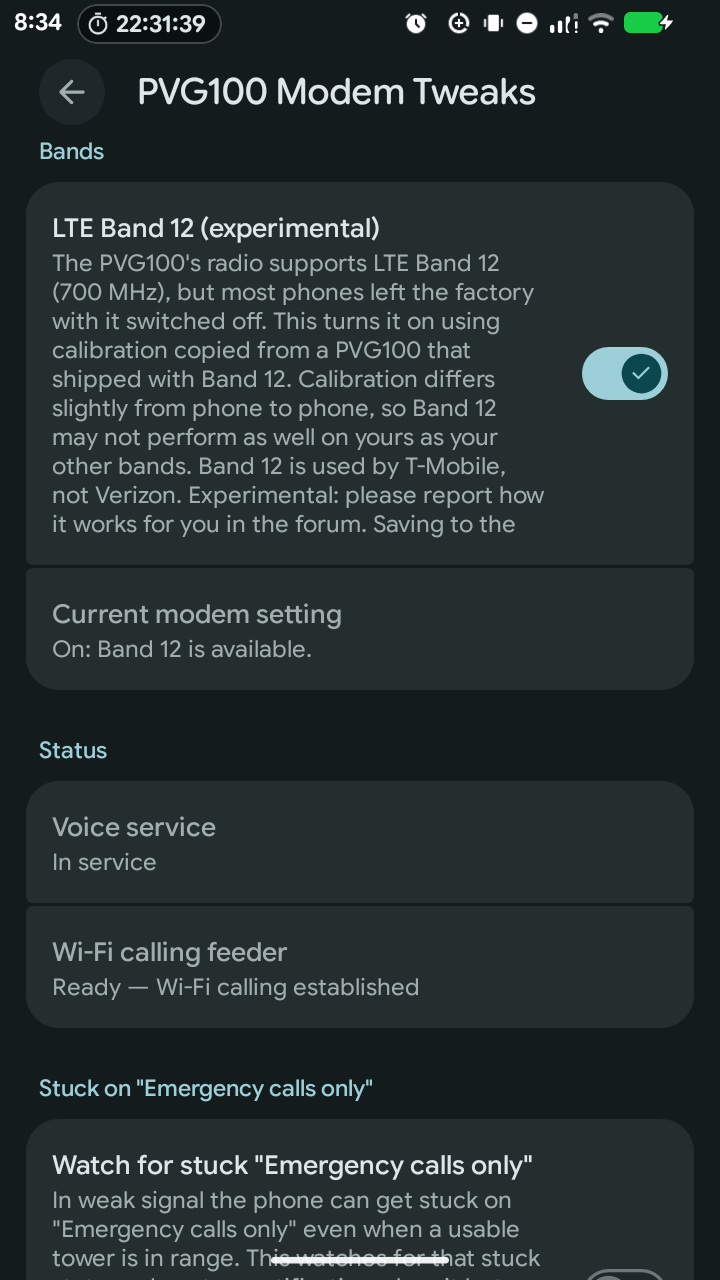
If you’re on T-Mobile or one of its MVNOs, please try it and tell me how it goes. Verizon doesn’t use B12, so on Verizon the switch makes no difference.
Retro
I just love this phone and I’m happy to keep it going for as long as I can.
Every time I work on it, I learn a bit more about the deep world of mobile telephony.
These posts also attract other PVG100 enthusiasts from across the world. There are tens of us! And I’m happy to help them enjoy the phone more too.
Comment via email